This page serves as the instructions to navigate this website. If you wish to print it out either right click and select print or use Ctrl + P.
Drop Down Menus
The black bar at the top of the screen serves as navigation for this website. Hovering the mouse over any of the headings circled in yellow in the image below will display a drop down menu with numbered pages, highlighted in orange. These pages contain additional content relevant to the section in the memoir with the same number.

Split Screen
The recommended way to use this website is to split the screen with the memoir document on one half and the website on the other. This will allow the reader to view sections of the memoir and any supporting content (photos, documents, video) at the same time.
At the end of some sections in the memoir is a line that says See additional (outlined in orange in the following image). These See additional lines show the reader which sections in the memoir have pages on the website with additional content. For example, section 2.8 Alaska/Military in the memoir has the line See additional: Photos Documents, meaning that the website has a photos and a documents page for this section.
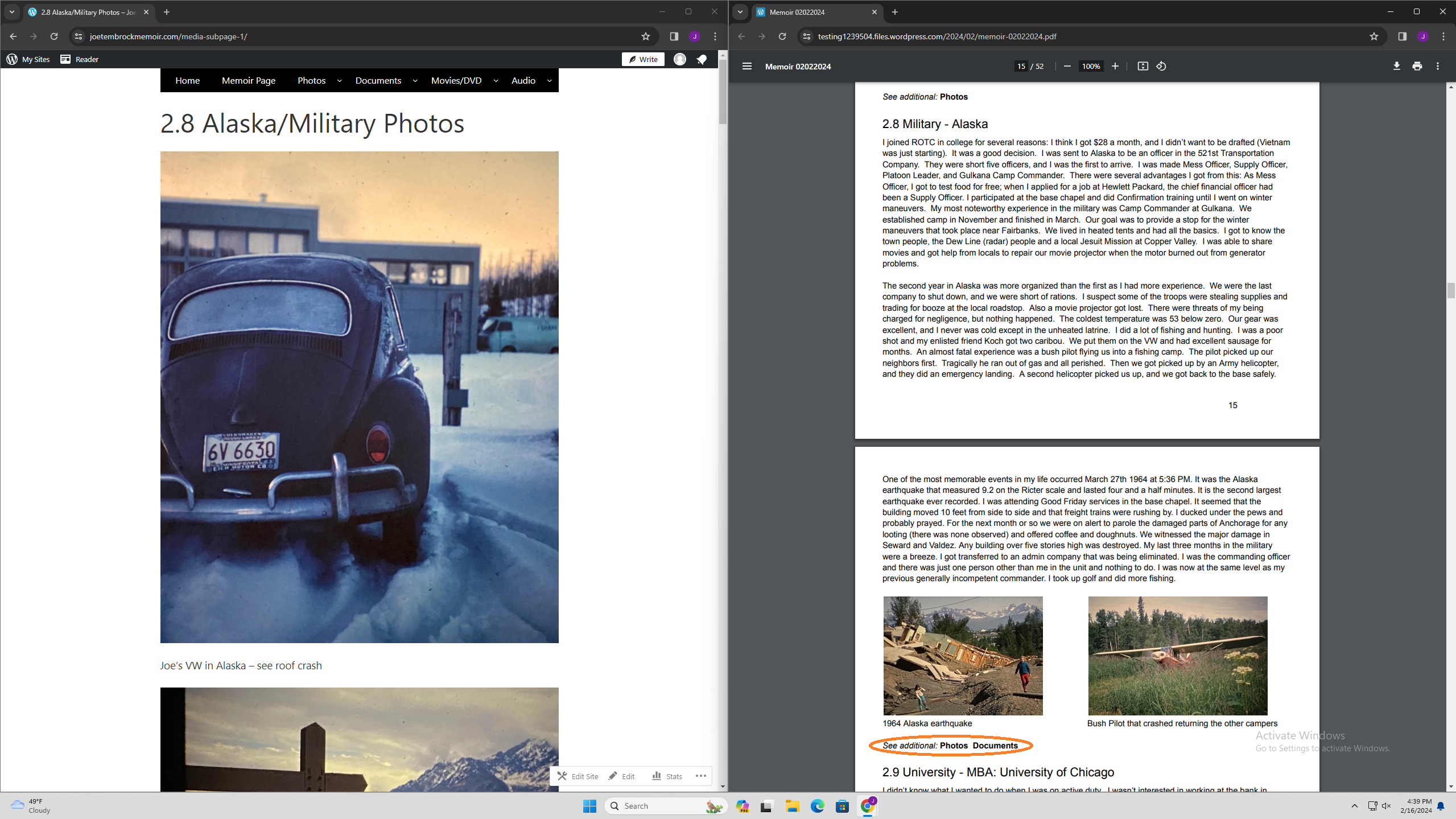
Splitting the screen is a three step process:
- This method works in either Chrome or Edge
- Closing any other windows you have open may make this process easier to follow the first time you do it
- First, navigate to the memoir page and click the blue link in the middle of the screen
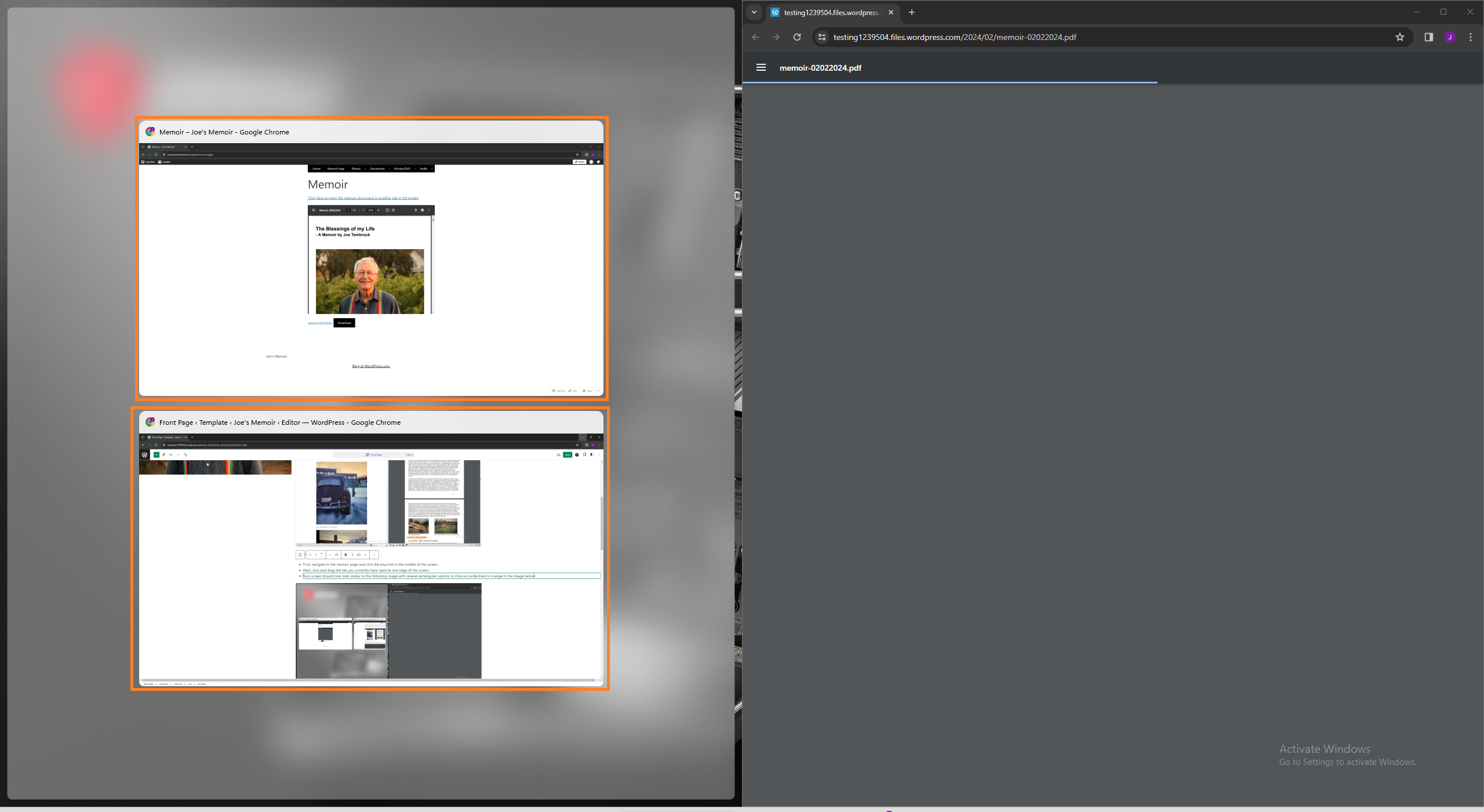
- Next, click and drag the tab you currently have open to one edge of the screen
- Your screen should now look similar to the following image with several rectangular options to click on (outlined in orange in the image below.) Click on the one named memoir.
For an example of the process please refer to the following video:
Viewing Documents
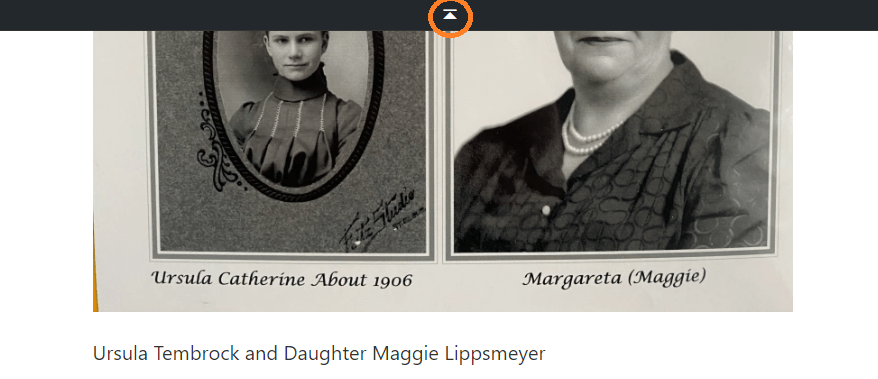
Some of the pages on this website are especially long. Once you’ve scrolled partway down a page an arrow will appear at the top of the screen as in the image below. Clicking it will return you to the top of the page.
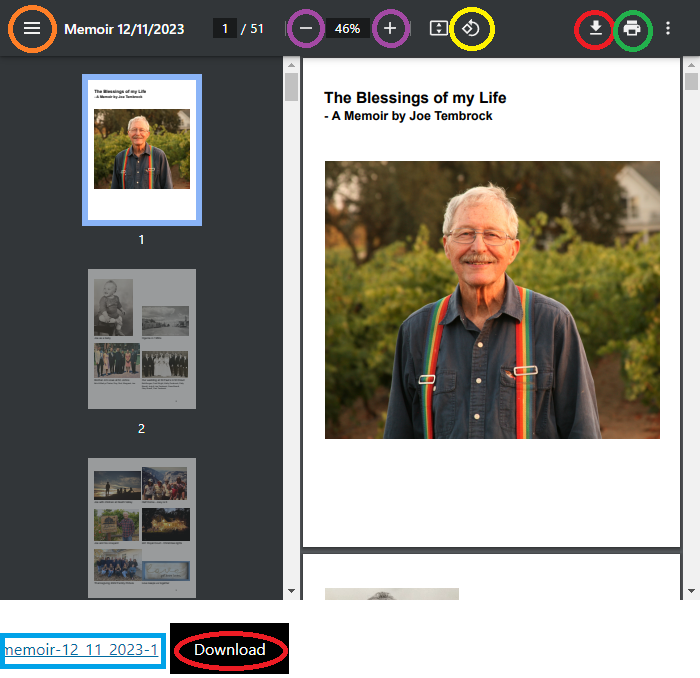
Below is an example of the way documents are viewed on this site:
- Highlighted in blue in the bottom left corner is a link that will open any document in full screen
- The button circled in yellow rotates the document 90 degrees
- Circled in orange are three lines that show or hide the numbered pages to the left of the document
- The controls to zoom in and out are circled in purple
- The button circled in green will allow you to print out the document
- Either of the buttons highlighted in red download the document
Nearly all parts of this website can be printed or saved offline:
- Save an image by right clicking on it and selecting Save image as…
- To print out entire pages, either use CTRL+P or right click somewhere empty on the page and select print.
 Joe's Memoir